
Profile & security
Update your name and photo, change your password, and enable two-factor authentication.
Your account settings cover the basics of your profile and how you sign in, separate from any specific wedding.
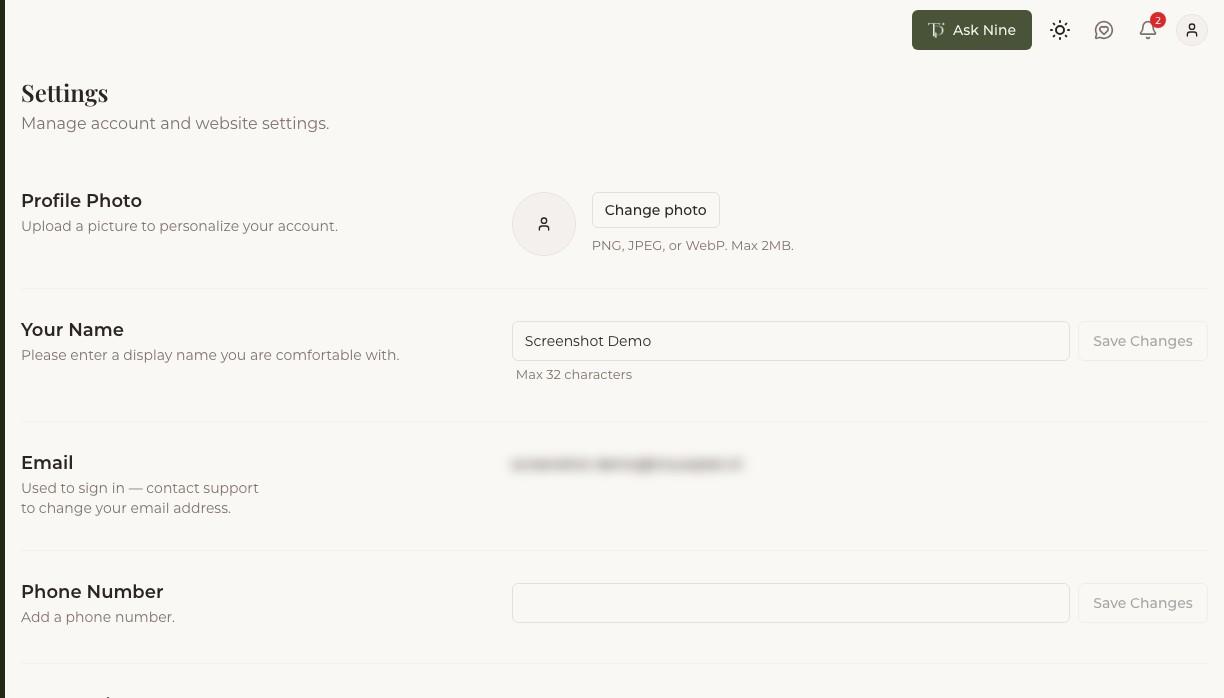
Profile details
Update your display name, profile photo, and phone number from your account settings at any time. None of these are required to use Trouwplan — they just make it clearer who's who when you're collaborating with others on a wedding.
Password
If you signed up with a password, you can change it from your account settings. If you originally signed in with Google or a magic link, you can set a password here to add it as another way to sign in.
Two-factor authentication
Two-factor authentication adds an extra step at sign-in, requiring a code from an authenticator app in addition to your password. To turn it on, you'll need a password set first. During setup, you'll scan a QR code with an authenticator app and enter a verification code to confirm it's working.
You'll also be given a set of backup codes — save these somewhere safe. Each one can be used once to sign in if you lose access to your authenticator app, and they're only shown to you once, at setup.
You can disable two-factor authentication at any time from the same settings, or regenerate your backup codes if you've used them up or want a fresh set.